



SiiPet PawTrack AI Pet Camera with Auto Tracking & 360° Pan
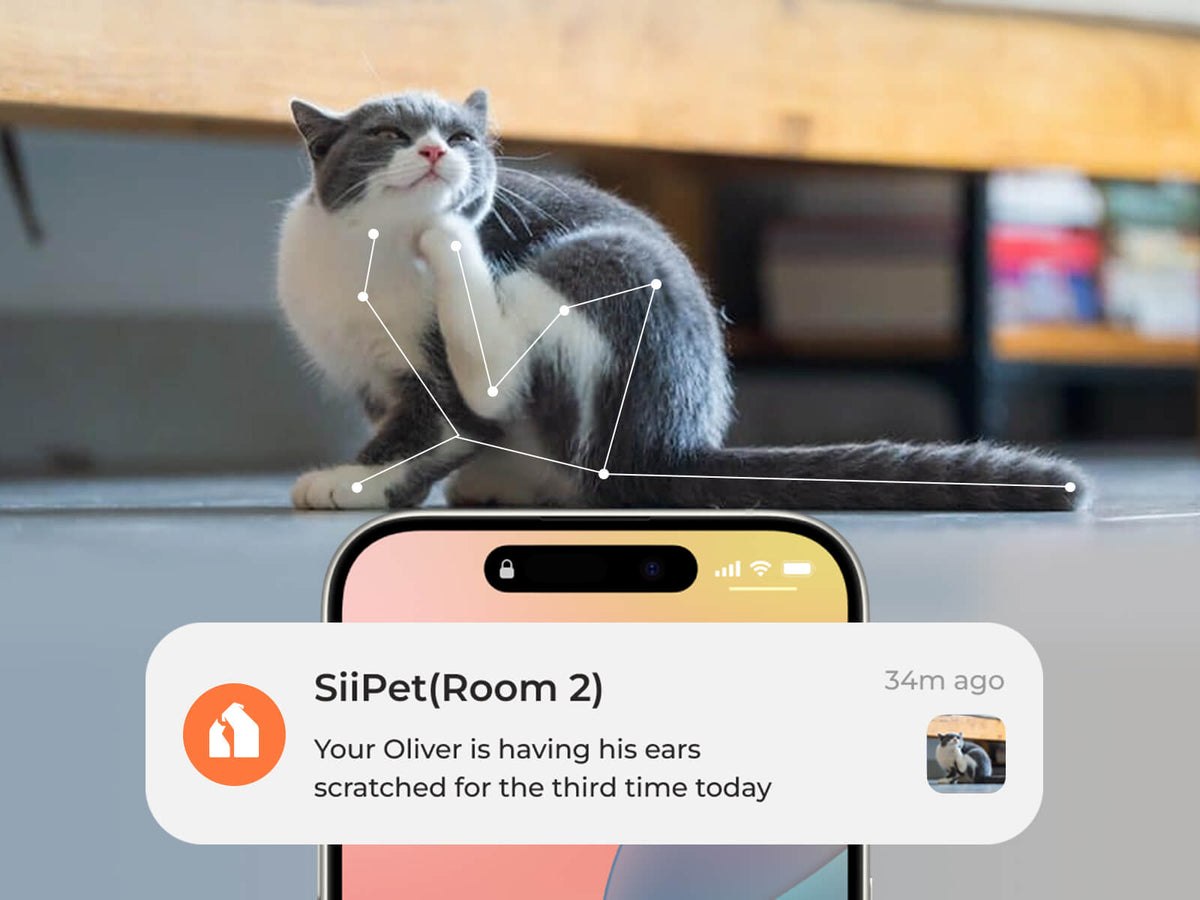
- Behavior Monitor: Follows your pet with a 360° spin & 270° tilt. Sends alerts for limping, scratching & more
- PawPrints: Auto-captures cute behaviors in 4K. Smart-frame AI keeps your pet centered in every shot.
- Daily Paws: Auto vlog, sorted by pet and behavior
- Audio Interaction: 1080p stream with two-way audio
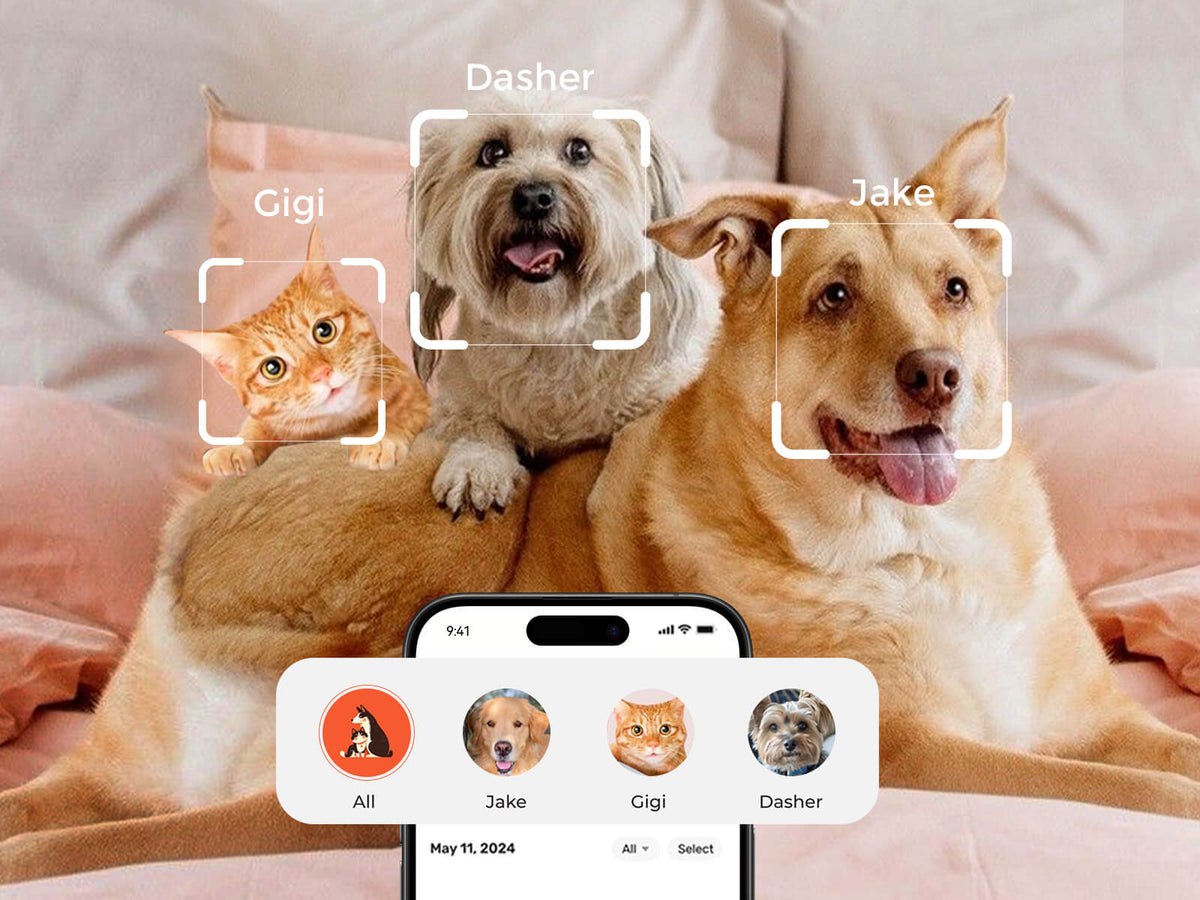
- Pet ID+: Tracks up to 5 pets individually
- Privacy Mode: Stops recording with tilt-down camera
 No Subscription
 Required
 Free Shipping
 1-Year
Warranty
- 1* SiiPet AI Pet Camera
- Power Adapter
- 1* USB-C Charging Cable
- Instruction Manual
- Only available for US Now.
- The order will be shipped within 1 working day
SiiPet PawTrack AI Pet Camera with Auto Tracking & 360° Pan
Black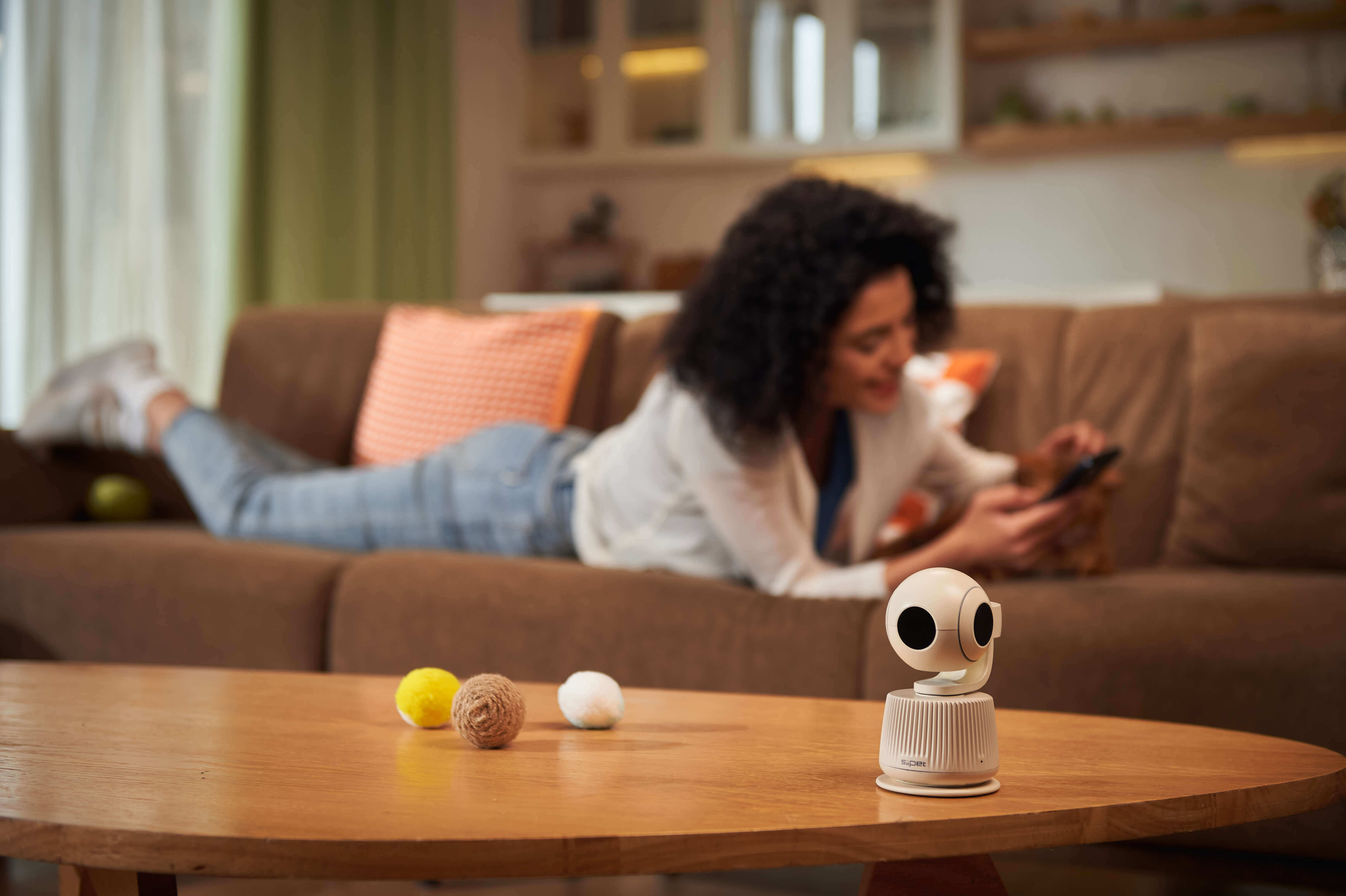
Watch Video

See Every Corner of Their Day
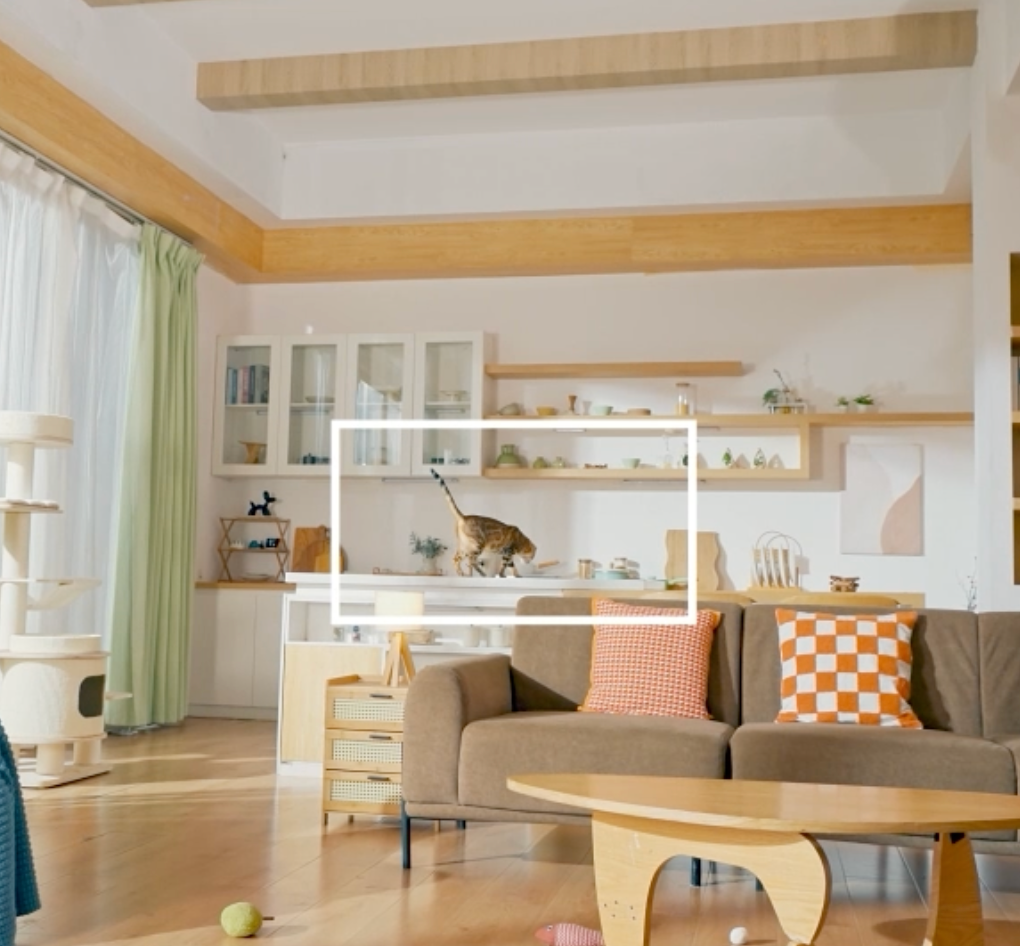
With PawTracking, the camera follows your pets and no one else, providing a window into their unique journeys. Whether they’re lounging on the couch or sneaking behind the furniture, you’ll never miss a thing.
Full 360° spin and 270° tilt
This camera gives you a complete view of your pet’s world.
A Day in Their Life, Organized
Daily Paws turns your pet’s everyday moments into a smart, searchable vlog. Every clip is recorded in crisp 1080p and automatically tagged by behavior, so you can relive, review, and understand their day in seconds.

Stay Close, Even From Afar
Talk to and comfort your pet anytime with real-time two-way audio—perfect for reducing anxiety when you're away.
Product Specification
2.86 x2.62 x4.39 inches
0.58 lbs
Resolution: 8MP
Effective Pixels: 3864(H)x2192(V)
Aperture: f/1.6
Video Resolution: 3840 x 2160
Digital zoom:1-4x
Gimbal Range: Horizontal Rotation: 280°; Vertical Tilt: 160°
Horizontal: 360°; Vertical: 270°
Voltage: 5V 3A
eMMC 32GB (Holds Approx. 2000 Reels)
2.4G & 5G (1x1), BLE Communication + Control Audio
Digital Microphone x2 + 1W Speaker with Noise Reduction
Audio Modes: Noise Reduction/Automatic Gain Control
Power& Communication Magnetic Interface
1
Bottom Arc-shaped LED
20-40°C
Android 10.0 or ios 13.0 and above
1 Year
FAQ
How to connect SiiPet camera with App?
To connect your SiiPet camera with the app, follow these steps:
- Download the SiiPet App: Search for "SiiPet" in the App Store or Google Play Store, or visit siipet.com to download the SiiPet app onto your smartphone.
- Power On the Camera: Plug in the charger to turn on the SiiPet camera. Ensure that the status light starts flashing blue. If it doesn't, you can manually power it on by holding down the power button behind the camera for about 10 seconds until the light starts flashing blue.
- Log In and Connect: After launching the app, log in with your SiiPet account. Once logged in, follow the on-screen instructions to connect to your camera. Remember, one account can manage up to 20 cameras.
If you're having trouble connecting and the connection keeps failing, try these troubleshooting steps:
- Check App Permissions: Ensure that the SiiPet app has the necessary permissions, specifically for network access and Bluetooth.
- Verify Wi-Fi Status: Make sure that Wi-Fi is enabled on your phone and that it's connected to the network you want the camera to use.
- Proximity to the Camera: Ensure that your phone is close enough to the SiiPet camera to establish a connection.
If, after trying these steps, you still can't connect to the camera:
- Use the help center button within the app to find additional support.
- Call the customer service hotline for direct assistance.
- Provide feedback through the app, detailing the issues you're experiencing for further troubleshooting.
Remember to keep your camera, app, and phone's software up to date to ensure compatibility and smooth functionality.
How to make the SiiPet camera track your pets?
- After successfully connecting the SiiPet camera to the SiiPet app, you should complete a profile for each of your pets by following the on-screen instructions.
- Once you have completed the profiles, the camera can automatically track your pets.
- If you have profiles for more than one pet, the camera can identify and track each one, provided that the profiles are accurate.To ensure accurate multi-pet identification, you can add profiles for up to 5 pets. Keep in mind that SiiPet may have difficulty distinguishing between pets of the same breed or with similar fur colors. Please be aware that there may be errors in multi-pet identification if your pets are of the same breed or have similar fur colors.
How to download photos and videos to your phone?
- Open the memories page in the SiiPet app.
- Tap the "select" button or icon to enter the selection mode.
- Choose the photos and videos you want to download by tapping on each item. Many apps allow for multi-select, where you can tap multiple photos and videos to select them all at once.
- After making your selections, look for a "download," "save to device," or similar button to initiate the download process. This will save the selected photos and videos to your phone's gallery or designated storage area.
How to take photos or videos manually?
Taking Photos: Open the real-time page or the rewind video in the SiiPet app. Click the photo capture button to take a photo.
Recording Videos: Open the real-time page or the rewind video in the SiiPet app. Click the video record button to start recording a video.
Alternatively, you can press the record button on the camera itself to start video recording.
How to view highlight clips of different pets?
You can go to the top of the "Memories" page, click on the pet's avatar, and switch between different pets.
How to share your device with friends?
- Open the settings page within the SiiPet app.
- Find and tap "Device Sharing" to start sharing your device.
- Please share the generated invitation link with your family and friends. Kindly note the link's expiration date.
- Before they accept the invitation, please ensure they've downloaded SiiPet and created an account.
How to put the camera into sleep mode?
Using the Real-time Preview Screen: On the real-time preview screen, locate and toggle the switch to the off position. The camera will enter sleep mode and will remain in this state until you turn the switch back on.
Using the scheduled Sleep Mode: Open the settings page within the SiiPet app.
Select the camera from the list of devices.
Navigate to the camera's settings page and find the scheduled sleep mode option.
Choose scheduled sleep mode and set specific on and off times for the camera to enter sleep mode automatically according to the schedule.
What to do if the camera's storage space is full
- Subscribing to Cloud Storage:
If your camera's storage space is full, you have the option to subscribe to cloud storage. By subscribing, you'll gain additional storage capacity to save your pets' highlight photos and videos, and you'll also have access to rewind videos for either 3 or 7 days, depending on the subscription plan. - Downloading and Managing Local Storage:
If you prefer not to subscribe to cloud storage, you can manage the storage space locally by downloading the photos and videos to your phone. Once downloaded, you can delete them from the memories to free up space for new recordings.
A window into your pets' world
A window into your pets' world

30-Day Risk-Free Trial

Free Shipping for US Orders Over $80

1-Year Warranty

Lifetime Support